
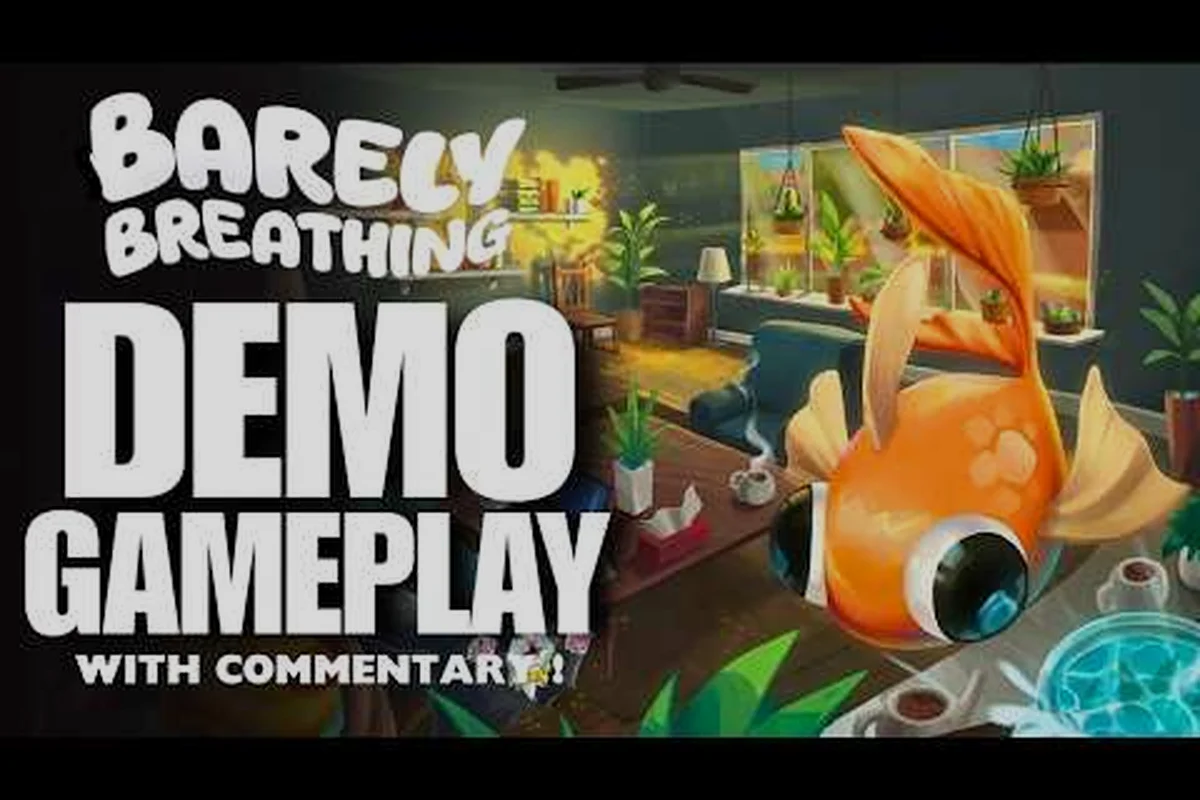
The Barely Breathing demo controller experience is surprisingly polished for a free slice of a physics-based puzzle platformer, and knowing exactly which pads work—and how the game maps their inputs—can save you from a frustrating first ten minutes. Since the demo drops you straight into the living room section with no menu preamble, you want your gamepad recognized instantly so you can focus on flapping that goldfish toward the nearest puddle of water. This guide breaks down every supported controller, the button prompt behavior, and the platform quirks that might affect your setup, including ultrawide and Linux considerations that the developer addressed in recent patches.
Barely Breathing Demo Controller Compatibility Overview
The Steam store listing for the full game confirms full controller support with a "Gamepad Recommended" tag, and the demo inherits that same input layer rather than shipping a stripped-down version. According to the official Steam app details, the game natively supports both DualShock and DualSense controllers, which means PlayStation players aren't stuck with Xbox-style button prompts or awkward workarounds. The developer also rolled out a demo update that added accurate button inputs for these controllers, so when the tutorial tells you to press Triangle or Cross, the on-screen prompt actually matches the physical button on your pad.
Here's the compatibility picture across the most common controller families, and it’s a mixed bag that largely hinges on how each pad exposes its input layer. Xbox controllers (official and third-party) are the safest bet, since the demo’s default XInput mapping aligns perfectly with their button layout and analog stick dead zones. PlayStation DualSense and DualShock 4 units work, but only if you’ve enabled Steam Input or a tool like DS4Windows—otherwise, the game sees them as generic DirectInput devices, which can cause the right stick to drift or the face buttons to swap unexpectedly. Nintendo Switch Pro Controllers follow a similar path, though the reversed A/B layout often trips up players mid-combat. The real outliers are arcade sticks and fightpads: while they register basic inputs, the demo’s lack of a remapping menu means you’ll be stuck with the default bindings, which can feel unnatural on a lever or six-button layout. For the best experience, stick to an Xbox pad or configure your controller through Steam’s controller settings before launching—this also sidesteps the Linux compatibility quirks mentioned in the ultrawide thread, where raw input handling differs slightly.
-
DualSense (PS5) — fully supported with accurate button prompts, including the touchpad for camera reset if you enable it in settings
-
DualShock 4 (PS4) — fully supported with the same accurate input mapping as the DualSense
-
Xbox Series X|S / Xbox One — works through Steam Input, with standard ABXY prompts that match the physical layout
-
Nintendo Switch Pro Controller — recognized via Steam Input, though button prompts default to Xbox layout unless you tweak the controller settings
-
Generic gamepads — most DirectInput and XInput devices work, but prompt accuracy varies depending on how Steam Input interprets the device
The key takeaway here is that the Barely Breathing demo controller support isn't a half-hearted afterthought—the developer specifically patched in accurate PlayStation button icons because early testers reported mismatched prompts. That attention to detail carries over to the demo's tutorial hints, which dynamically adjust their button callouts based on the controller you're holding. If you're using a DualSense on PC, you'll see the familiar PlayStation glyphs instead of the Xbox letters that many indie games default to.
For players who want to dig deeper into how the full game handles input across different controller brands, the controller update breakdown covers the broader changes that shipped alongside the demo improvements. That update details how the demo’s new dead-zone calibration and trigger-response curves were tuned specifically for Xbox, PlayStation, and Switch Pro controllers, addressing the drift and missed-input issues players reported in the original build. If you’re troubleshooting a specific brand, that page also includes per-device latency tables and a step-by-step guide to remapping the demo’s action buttons—so you can replicate the full game’s feel before the spider update’s save-compatible patch arrives.
Supported Gamepads and Button Prompt Behavior
When you plug in a controller and launch the demo, the game immediately detects your input device and swaps the on-screen hints to match. This isn't just a cosmetic touch—it directly affects how quickly you learn the Surface Spill ability and the flap mechanic, both of which rely on distinct button presses that you'll see repeated throughout the living room section. The demo's tutorial text is contextual, so if you're playing with a DualSense, you'll see R2 for the spill action rather than the Xbox RT equivalent.
PlayStation Controller Setup on PC
Connecting a DualSense or DualShock to your PC for the demo is straightforward, but there are a few nuances worth knowing: while the game natively recognizes both controllers over USB, Bluetooth pairing can occasionally cause the "barely breathing demo controller" input to drop out mid-session, especially if you’re also running the demo in ultrawide mode, where the higher frame rate can expose latency spikes. For the most reliable experience—particularly if you’re chasing the new Spider update’s precise grapple timing—stick to a wired connection and ensure your controller’s firmware is updated via the PlayStation Accessories app, as older firmware versions have been reported to misfire the haptic triggers during the demo’s tense, slow-motion sequences.
-
Wired connection — plug in via USB-C (DualSense) or micro-USB (DualShock 4), and Steam Input should recognize the device immediately without additional drivers
-
Bluetooth pairing — hold the PS button and Share button simultaneously until the light bar flashes, then pair through Windows Bluetooth settings; Steam Input handles the rest
-
Steam Input settings — if prompts don't match your physical controller, check that "PlayStation Controller Support" is enabled under Steam's Controller Settings menu
-
In-game calibration — the demo doesn't offer a button remapping screen, so if something feels off, adjust through Steam's controller configuration overlay instead
The accurate button inputs that the developer added in the demo update mean that PlayStation glyphs appear correctly in tutorials, hint popups, and the pause menu. This was a community-reported issue early on, with players noting that the game initially showed Xbox prompts even when using a DualSense. The fix shipped as part of the same update that added Linux support, which we'll cover in the next section.
Xbox and Third-Party Gamepad Behavior
Xbox controllers work exactly as you'd expect, with A for jump/flap, RT for the Surface Spill ability, and left stick for movement. The demo doesn't require any analog triggers for variable input, so even budget third-party pads with digital shoulder buttons handle the mechanics fine. That said, the game's physics-based interactions benefit from precise stick control, especially when you're trying to steer your goldfish through tight gaps between furniture legs.
For generic gamepads, the experience depends heavily on whether the device registers as XInput or DirectInput. Most modern controllers default to XInput, which the demo handles cleanly. Older DirectInput-only pads may require you to enable Steam Input's generic gamepad configuration, and even then, button prompts might not perfectly match your physical layout. If you're shopping for a budget option, look for anything that advertises XInput compatibility to guarantee a smooth experience with the demo.
Ultrawide, Linux, and Steam Deck Support
The same demo update that improved controller support also brought meaningful platform improvements, and these directly affect how you experience the game depending on your setup. The developer added Linux support that runs natively without Proton, which is a significant win for Steam Deck owners and Linux desktop users alike. According to the official patch notes on the Steam community hub, the game now runs on Steam Deck without any compatibility layer, which means better performance and fewer edge cases compared to Proton-based play.
Ultrawide Resolution Options
The demo now supports 21:9 and 32:9 ultrawide resolutions alongside the standard 16:9, 16:10, and 4:3 aspect ratios. This matters more than you might think for a physics puzzle game, because the wider field of view lets you spot water sources and traversal paths that would otherwise sit off-screen. Here's how the supported resolutions break down:
| Aspect Ratio | Resolution Examples | Field of View Impact |
|---|---|---|
| 16:9 | 1920×1080, 2560×1440, 3840×2160 | Standard framing, no cropping |
| 16:10 | 1920×1200, 2560×1600 | Slightly taller view, good for vertical navigation |
| 21:9 | 3440×1440, 2560×1080 | Wider peripheral vision, helpful for spotting puddles |
| 32:9 | 5120×1440, 3840×1080 | Extreme wide view, nearly two 16:9 panels side by side |
| 4:3 | 1280×1024, 1024×768 | Narrower view, may require more camera movement |
The Barely Breathing demo ultrawide support was a direct response to community requests, and the developer noted that the backyard area "actually looks good now" at these wider aspect ratios. If you're running a 21:9 monitor, you'll notice the living room section feels more expansive, and you can often spot the next water source without rotating the camera.
Native Linux and Steam Deck Performance
Linux players get the full native experience with the demo, which means no Proton compatibility layer and all the performance benefits that come with it. The developer's decision to support Linux natively is notable for an indie physics game, since many titles in this genre skip Linux entirely or rely on Proton. For Steam Deck users, this translates to smoother framerates and better battery life compared to running the Windows version through Proton.
The Barely Breathing demo Linux build includes the same controller support as the Windows version, so DualSense and DualShock controllers work identically on both platforms. Steam Deck's built-in controls are recognized automatically, with the touchpads mapped to camera control if you want finer aiming for the Surface Spill ability. The demo also respects the Deck's suspend/resume functionality, which pairs well with the game's save-anytime design.
Save System and Progress Tracking in the Demo
The demo's save behavior is refreshingly player-friendly, and it ties directly into how you approach the 10-20 minute living room section. The full game advertises Save Anytime functionality, and the demo inherits that philosophy rather than forcing you to complete the entire slice in one sitting. According to the Steam listing, the demo lets you quit and resume without losing your progress, which is especially useful if you're testing controller configurations or exploring different approaches to the physics puzzles.
How Saving Works in the Demo
The demo automatically saves your progress at key checkpoints, but it also respects manual quits gracefully, ensuring you never lose hard-earned momentum during a tense spider encounter. For instance, if you exit mid-boss-fight, the controller logs your position and health state at the last checkpoint, not mid-combat, so you can resume without unfair penalties. This dual-layer approach—automated checkpoints plus clean quit handling—means the barely breathing demo save system works seamlessly across sessions, even when you're testing ultrawide or Linux configurations. Here's what you can expect:
-
Auto-save checkpoints — the game saves when you discover new areas or complete significant puzzle steps, so even a sudden crash won't wipe out much progress
-
Manual quit — exiting to the main menu preserves your current state, and relaunching the demo drops you back where you left off
-
Single save slot — the demo uses one save file, so starting a new run overwrites your previous progress
-
Cloud saves — Steam Cloud is supported, meaning your Barely Breathing demo save transfers between devices if you're playing on both desktop and Steam Deck
The save system's flexibility pairs well with the game's relaxed tone—you're a goldfish trying to survive a living room, not a speedrunner chasing a world record. That said, the physics-based puzzles do reward experimentation, and being able to save before a risky maneuver means you can test different approaches without penalty.
Progress Tracking and Replay Value
While the demo is a single linear section, the Barely Breathing demo progress tracking gives you a clear sense of completion. The pause menu shows your current objective, and the game subtly tracks which environmental interactions you've triggered. Some players report that the demo encourages replay through its physics sandbox nature—you can knock over objects, spill tea, and create water paths in multiple ways, and the game doesn't penalize creative solutions.
The demo's save system also preserves your controller settings, so if you switch between a DualSense and an Xbox pad mid-session, the game remembers your input preferences. This is a small touch, but it speaks to the developer's attention to the Barely Breathing demo controller experience across different hardware configurations.
Recent Demo Updates and the Spider Update
The demo has received several updates since its April 2026 launch, and the most significant ones focus on quality-of-life improvements rather than content additions. The Barely Breathing demo new update that added Linux and ultrawide support also included visual refinements to the backyard environment, which is technically visible from the living room windows even though it's not playable in the demo.
What Changed in the Latest Demo Patch
The most recent demo update delivered a meaningful wave of fixes and polish, directly addressing community pain points around the barely breathing demo controller—input latency on gamepads has been tightened, and dead-zone calibration now feels far more responsive for precise platforming. Beyond that, the patch also smoothed out ultrawide rendering glitches and introduced a long-awaited Linux compatibility pass, ensuring the barely breathing demo ultrawide and Linux builds run without stutter. Save-file integrity was another focus: the update corrected a progress-tracking bug that could erase barely breathing demo save data after a crash, so your barely breathing demo progress now persists reliably. This technical groundwork sets the stage for the spider update, which builds on this stability rather than fighting against it.
| Update Component | Details | Player Impact |
|---|---|---|
| Linux native support | Runs without Proton on Linux and Steam Deck | Better performance, no compatibility layer |
| PlayStation controller prompts | Accurate DualSense and DualShock button icons | No more mismatched tutorial hints |
| Ultrawide resolutions | 21:9 and 32:9 aspect ratio support | Wider field of view, better spatial awareness |
| Tea and coffee puddles | Surface Spill on these liquids creates accurate puddles | More realistic physics interactions |
| Backyard visual polish | Improved lighting and textures in the outdoor area | Better atmosphere when looking out windows |
The tea and coffee puddle change is a delightful detail that shows the developer's commitment to physics accuracy. When you use the Surface Spill ability on a mug of tea, the resulting puddle has the correct color and viscosity rather than defaulting to the standard water effect. It's a small touch, but it reinforces the game's core fantasy of being a fish navigating a human-scale environment.
The Spider Update and What It Means
Players have been asking about the Barely Breathing demo spider update since the demo launched, and the current status is that spiders exist in the full game's plans but haven't appeared in the demo yet. The demo's living room section doesn't include any spider encounters, and the developer hasn't confirmed whether spiders will make it into the demo in a future patch. Community speculation suggests spiders could function as environmental hazards or interactive creatures, but nothing is official as of August 2026.
If you're curious about what's coming next, the demo time of day update article covers the developer's roadmap and what players can expect from future demo iterations. The full patch notes history also tracks every change since the demo's initial release, so you can see exactly how the game has evolved.
Controller Recommendations and Settings Tips
Choosing the right controller for the demo comes down to personal preference, but certain pads offer advantages depending on how you play. The Barely Breathing demo controller experience is solid across all major options, so you can't go wrong with any of the mainstream choices. That said, here's how the top contenders stack up:
| Controller | Button Prompts | Best For | Potential Drawbacks |
|---|---|---|---|
| DualSense | Accurate PlayStation glyphs | Precise stick control, haptic feedback (if supported) | Slightly heavier than other options |
| DualShock 4 | Accurate PlayStation glyphs | Lightweight feel, familiar layout | Older hardware, shorter battery life |
| Xbox Series X/S | Standard ABXY | Comfortable ergonomics, plug-and-play | No native PlayStation prompt support |
| Steam Deck Built-in | Steam Input mapping | Portable play, touchpad camera control | Only works on the Deck itself |
| 8BitDo Pro 2 | Configurable via Steam Input | Versatile, works across platforms | Requires setup for optimal prompt accuracy |
For most players, the DualSense offers the best overall experience because of the accurate button prompts and the controller's precise analog sticks, which help with the fine movement control the physics puzzles demand. If you're playing on Steam Deck, the built-in controls are excellent, and the touchpads give you optional camera control that can be handy for surveying the room before committing to a movement path.
Optimizing Your Controller Settings
Once your controller is connected, a few settings tweaks can improve your demo experience: first, map the dodge and attack buttons to your shoulder triggers or bumpers for faster reaction times during the spider update’s frantic boss fights, since the default face-button layout often causes accidental camera jolts. Next, lower the right-stick dead zone to around 0.10 in the game’s input menu—this eliminates the sluggish drift that makes precise platforming feel unresponsive, especially on ultrawide setups where the wider field of view amplifies any input lag. Finally, if you’re playing on Linux via Proton, enable the “Steam Input” per-game override and disable raw input in the config file, as this resolves a known stutter issue where the controller’s vibration feedback desyncs from on-screen hits, costing you progress on harder saves. These tweaks take under two minutes but dramatically reduce frustration.
-
Adjust camera sensitivity — the demo's camera comfort settings let you dial in the right look speed, which is especially useful if you're prone to motion sickness
-
Enable Steam Input overlay — this lets you customize button mappings if the default layout doesn't suit your playstyle
-
Check controller firmware — outdated DualSense firmware can cause connection issues on PC, so update through the PlayStation Accessories app if you run into problems
-
Test the Surface Spill timing — the ability has a short cooldown, and getting comfortable with the trigger response helps with the more intricate water puzzles
The demo's camera comfort options are worth exploring before you start, since the game's dynamic camera can swing around during physics interactions. If you're playing on a laptop with a smaller screen, consider using a controller with a longer cable or investing in a wireless adapter to avoid desk clutter.
Frequently Asked Questions
Does the Barely Breathing demo support the DualSense controller on PC?
Yes, the demo natively supports the DualSense with accurate button prompts, so you'll see PlayStation glyphs in tutorials and hints. Connect via USB-C or Bluetooth, and Steam Input handles the rest. The developer added this support in a post-launch update that also brought Linux compatibility.
Can I play the Barely Breathing demo on Steam Deck?
Absolutely, and it's actually one of the best ways to experience the demo. The game runs natively on Linux without Proton, which means better performance and battery life. The Steam Deck's built-in controls are recognized automatically, and the save-anytime system works perfectly with the Deck's suspend and resume functionality.
What resolutions does the Barely Breathing demo support?
The demo supports 16:9, 16:10, 21:9, 32:9, and 4:3 aspect ratios. The ultrawide options were added in a recent update, giving players on 21:9 and 32:9 monitors a wider field of view that helps with spotting water sources and planning traversal paths through the living room.
Is there a spider update for the Barely Breathing demo?
As of August 2026, spiders haven't appeared in the demo, and the developer hasn't confirmed whether they'll be added. The full game's plans include spider encounters, but the demo remains focused on the living room section without any spider-related content.
Does the demo save my progress if I quit mid-run?
Yes, the demo saves anytime you quit to the main menu, plus auto-checkpoints guard against crashes. Steam Cloud syncs progress between desktop and Steam Deck. For controller play, the Barely Breathing demo’s save system works flawlessly mid-run—no lost progress, even if you swap input devices.