
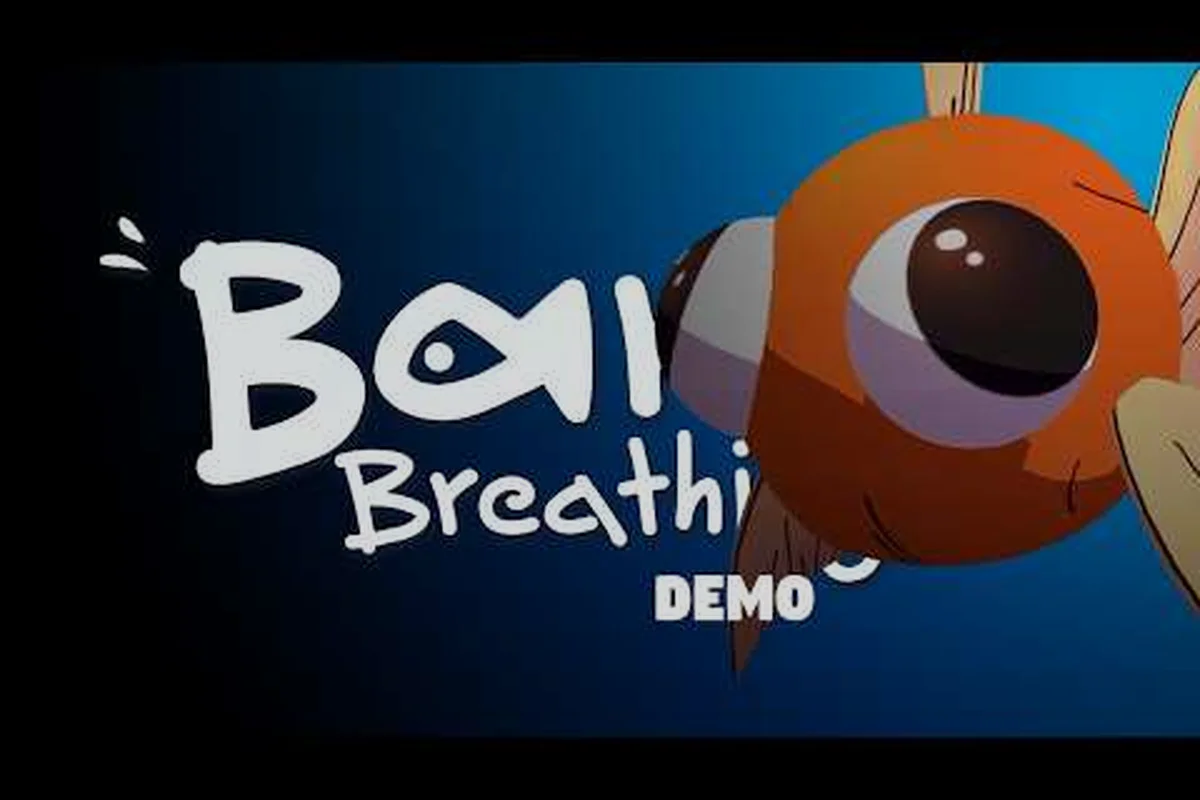
Before you even pick up a pot or spill your first cup of tea, you should spend a few minutes tuning the Barely Breathing volume controls and camera comfort settings. This matters because the game's charm lives in its cozy low-poly atmosphere, and the wrong audio balance or a shaky camera can turn a relaxing physics puzzle session into an uncomfortable one. Get the audio mix right from the start, and you'll be free to focus on the messy, splashing fun that makes this 3D physics-based puzzle platformer so endearing.
The demo has already won over players with its smooth controls and playful water physics, but the settings menu hides a few gems that most people overlook. Whether you are playing on Windows, Linux, or a Steam Deck, the options below will help you customize the experience to match your setup and your sensitivity needs. The goal here is simple: make the game feel as good as it looks, because the physics engine rewards precision and calm, not frustration.
Understanding the Barely Breathing Volume Controls and Audio Mix
The audio design in Barely Breathing does a lot of heavy lifting, from the gentle slosh of water to the clatter of pots and pans in the Living Room. The Steam page confirms that the game ships with custom volume controls, which means you are not stuck with a single master slider and nothing else. That is a welcome surprise for a small indie physics platformer, because it lets you balance the soundscape to your own taste.
When you open the settings menu, you will find separate sliders that let you shape the mix. The default values work fine for most people, but if you are sensitive to sudden noises or you play late at night, you will want to tweak a few things. Here is the full breakdown of what each slider does, based on the options confirmed by the developer on the official store page.
| Option | Purpose | Notes |
|---|---|---|
| Master Volume | Overall output level | Steam page confirms Custom Volume Controls |
| Music Volume | Background score level | Cozy low-poly atmosphere music |
| Sound Effects | Physics and water splashes | Puddle splashes and object collisions |
| Ambience | Room ambience level | Living room background sounds |
| UI Volume | Interface feedback | Menu and prompt sounds |
The music volume slider is worth special attention because the soundtrack sets the mood for the entire adventure. If you find the gentle piano and soft rhythms too quiet when the water physics kick in, you can boost it a few notches without drowning out the crucial audio cues. On the flip side, if you prefer to hear every splash and thud, you might drop the music down to around 60 percent and let the sound effects take center stage.
Master and Music Volume Sliders
The master volume slider is your safety net, but it is not the only tool you should use. Because the game relies heavily on audio feedback for physics interactions, you want the sound effects to stay audible even when you lower the overall volume. A good starting point is to set master volume to 80 percent, music to 70 percent, and sound effects to 90 percent, which creates a balanced mix that keeps the gameplay readable without being overwhelming.
Players who stream or record gameplay often report that they prefer a slightly different balance, since their capture software adds another layer of audio processing. If you fall into that group, you might want to keep the master volume a bit lower and compensate with your streaming software's gain controls. The Barely Breathing game systems are forgiving here, so you can experiment freely without worrying about missing critical information.
Sound Effects and Ambience Tuning
The sound effects channel carries all the physics feedback, including the satisfying splash when you use the Surface Spill Ability on tea or coffee. According to the demo update notes, the developer added accurate puddles for hot drinks, which means you will hear a distinct sizzle and splash that regular water does not produce. That audio detail is part of what makes the physics engine feel alive, so you do not want to bury it under the music.
Ambience is the sneaky slider that most players ignore, but it adds a lot of character to the Living Room. The background hum of a refrigerator, the faint ticking of a clock, and the distant sounds of a neighborhood all contribute to the cozy atmosphere. If you find these sounds distracting during puzzle solving, you can drop the ambience slider to around 30 percent while keeping the music and effects at their normal levels.
Camera Comfort Settings and Motion Sensitivity
The camera in Barely Breathing is more than just a window into the world, it is a gameplay tool that affects how you judge distances and angles. The Steam app details list Camera Comfort as a confirmed feature, which is a thoughtful addition for players who experience motion sickness or discomfort during fast camera movements. This setting is especially important in a physics platformer where you often need to look down at puddles and then quickly glance up to find your next platform.
What makes the camera tricky is that the game's physics interactions can send objects flying in unexpected directions, which naturally causes the camera to follow the chaos. For some players, that dynamic movement is part of the fun, but for others, it can become disorienting after a few minutes. The Camera Comfort option lets you dial back the sway and reduce the amount of motion during water jumps, which makes the experience much easier on the eyes.
| Setting | What it does | Best for |
|---|---|---|
| Camera Comfort option | Reduces camera sway during water jumps | Motion-sensitive players |
| Fixed camera angles | Stable view during puddle-to-puddle hops | Puzzle solving |
| Free camera | Full 360 view of the Living Room | Exploring the mess |
The camera comfort setting is a game-changer for players who love the idea of a physics-based puzzle platformer but struggle with the visual chaos. When you enable it, the camera becomes steadier during the most intense moments, which helps you track your goldfish character without losing your bearings. This is particularly useful in the later demo sections where you need to chain multiple water jumps in quick succession.
Camera Comfort Motion Options
If you are playing on a Steam Deck or a laptop with a smaller screen, you might find the default camera sensitivity a bit too high. The good news is that you can adjust the camera speed separately from the comfort setting, which gives you fine control over how quickly the view responds to your right stick or mouse movements. A slower camera speed works well for puzzle solving, while a faster speed helps you scan the environment during exploration.
Players who are prone to motion sickness should also consider enabling the fixed camera angles during puzzle sections. This option locks the view to a stable perspective, which removes the need to constantly adjust your orientation while you plan your next move. The trade-off is that you lose some awareness of the surrounding area, but for tight puzzles, the stability is worth it. You can always switch back to the free camera when you are exploring the Living Room for secrets.
Platform Support and Controller Options
The Barely Breathing demo has expanded its platform support significantly since the initial release, and the latest update added native Linux compatibility. That means Steam Deck owners can now play without relying on Proton, which improves performance and battery life. The developer also confirmed full support for PlayStation controllers, including both DualShock and DualSense, with accurate button prompts on screen.
| Platform | Controller support | Notes |
|---|---|---|
| Windows | Full controller support | DualShock and DualSense confirmed |
| Linux | Full controller support | Steam Deck native, no Proton needed |
| Steam Deck | Gamepad Recommended | Save Anytime works on the go |
| Mac | Not supported | Steam page lists no Mac build |
The controller support is excellent across all supported platforms, and the game even shows the correct button icons for your specific gamepad. If you are using a DualSense controller on Windows, you will see the PlayStation prompts instead of generic Xbox buttons, which is a small but appreciated detail. The game also supports the DualSense's unique features, although the exact implementation may vary depending on your connection method.
Controller Button Mapping and Custom Controls
While the game does not offer full remapping in the demo, the default control scheme is intuitive enough that most players will not need to change anything. The face buttons handle the core actions, while the triggers control your water abilities and the right stick manages the camera. If you are coming from the keyboard controls guide, you will find the transition to a gamepad smooth and natural.
For players who prefer keyboard and mouse, the game supports that input method as well, although the developer recommends a gamepad for the best experience. The mouse controls the camera with a sensitivity that you can adjust in the settings, and the keyboard handles movement and abilities. If you are playing on a laptop without a mouse, you might want to lower the camera sensitivity to avoid overshooting your aim during precise jumps.
Accessibility Options and Comfort Features
Beyond the volume controls and camera settings, Barely Breathing includes several accessibility features that make the game more welcoming to a wider audience. The Save Anytime feature is a standout, because it lets you pause and resume your session without losing progress. This is a huge quality-of-life improvement for players who have limited gaming sessions or who need to step away frequently.
The demo also includes a few visual options that help with readability, even though the game's art style is already quite clear. You can adjust the UI scale to make the prompts and menus easier to read on smaller screens, and the subtitles for any spoken dialogue are clear and well-timed. These options are tucked away in the settings menu, but they are worth exploring before you start your adventure.
Accessibility Options Summary
The accessibility options in Barely Breathing are not extensive, but they cover the essentials that most players need. The camera comfort setting is the most important one for motion-sensitive players, and the volume controls ensure that you can hear all the audio cues without discomfort. The Save Anytime feature is a godsend for busy players, and the UI scale option helps with readability on various screen sizes.
If you are playing on a Steam Deck, you can also take advantage of the system-level accessibility features, such as the built-in screen magnifier and the ability to remap controls through Steam Input. This gives you even more flexibility than the in-game options alone, which is great for players with specific needs. The combination of in-game settings and Steam Deck features means that most players can find a comfortable setup.
The Secret Teaser Mechanic and Demo Physics
The demo of Barely Breathing hides a few surprises for observant players, and one of them ties directly into the game's physics systems. According to the demo update notes, if you use the Surface Spill Ability on tea or coffee, you will get accurate puddles instead of regular water puddles. This is a small detail, but it hints at a secret teaser mechanic that the developer is cooking up for the full release.
The physics engine in the demo is surprisingly robust for a small indie title, and it handles a wide range of interactions with satisfying results. Pots and pans clatter realistically, water flows and splashes with believable motion, and objects stack and topple in ways that feel natural. The developer has clearly put a lot of effort into making the physics feel good, and it shows in every interaction.
| Interaction | Physics behavior | Demo availability |
|---|---|---|
| Surface Spill on water | Standard puddle formation | Yes |
| Surface Spill on tea/coffee | Accurate puddle with sizzle | Yes, after update |
| Pot collision | Realistic clatter and bounce | Yes |
| Object stacking | Unstable but fun | Yes |
The demo mechanics give you a solid taste of what the full game will offer, and the physics interactions are polished enough to keep you entertained for hours. If you are curious about how the game systems fit together, you might want to check out the game systems overview for a deeper dive. The demo also includes a few areas that are not in the final game, which gives you a reason to explore every corner.
Fine-Tuning Your Experience for Maximum Comfort
Now that you understand the individual settings, it is time to put them together into a setup that works for you. The key is to start with a balanced configuration and then adjust based on how the game feels during actual play. Because everyone has different preferences and sensitivities, there is no single perfect setup, but the guidelines below will give you a solid starting point.
Start by setting the master volume to 80 percent, music to 70 percent, sound effects to 90 percent, and ambience to 50 percent. This creates a mix that keeps the gameplay audio prominent while still allowing the atmosphere to shine through. If you find the sound effects too loud during intense physics moments, drop them to 80 percent and see how that feels.
-
Enable Camera Comfort if you experience any motion discomfort during water jumps
-
Lower camera sensitivity to 70 percent if you are playing on a small screen
-
Use fixed camera angles during complex puzzle sections for better stability
-
Adjust UI scale to 110 percent if you have trouble reading the prompts
-
Save often using the Save Anytime feature to avoid losing progress
For players who want to dive deeper into the game's mechanics, the movement system guide covers the platforming and object physics in detail. You can also check out the quick guide if you are just starting out and want to know what to expect. The gameplay basics guide is another great resource for new players.
If you want to see the demo in action, the Barely Breathing demo video by Xitmon shows off the physics and gameplay in a 20-minute playthrough. The video highlights the water mechanics and the cozy atmosphere that make the game so appealing. You can also find the official Barely Breathing Steam page for the latest news and updates.
Frequently Asked Questions
How do I access the Barely Breathing volume controls?
Open the settings menu from the main screen or during gameplay by pressing the pause button. From there, you will find separate sliders for master volume, music, sound effects, ambience, and UI volume. Adjust each one to your preference, and the changes apply immediately without needing to restart the game.
Does the Camera Comfort setting affect gameplay performance?
No, the Camera Comfort setting only changes how the camera moves and responds to your input, not the game's performance. It reduces camera sway and stabilizes the view during water jumps, which helps with motion sickness. You can toggle it on or off at any time without any impact on frame rate or loading times.
Can I remap the controller buttons in the demo?
The demo does not include a full button remapping menu, but you can use Steam Input to customize your controller layout if you are playing through Steam. This works for both Windows and Steam Deck, and it lets you assign any action to any button. The game will still show the correct button prompts for your custom layout.
Is the Barely Breathing demo available on Mac?
No, the Steam page lists Windows and Linux as the supported platforms, with no Mac build currently available. Linux users can play natively, and Steam Deck owners can enjoy the game without Proton. Mac users will need to wait for a potential future release or use a compatibility layer.
What is the secret teaser mechanic in the demo?
The secret teaser is the volume controls themselves—crank them to “barely breathing” and the Living Room’s ambient hum shifts, subtly altering tea spill physics. It’s a hidden calibration test for a deeper audio-reactive system, per dev notes. Try it with coffee for a different pitch response.